
Descripción
Vanquish Upload Files for WooCommerce lets you collect files from your customers — logos, artwork, documents, photos — exactly where you need them: on the product page, in the cart, during checkout, or on the order details page.
Whether you run a print shop, a personalization service, or any store that sells custom products, this plugin makes it effortless for customers to provide the files you need to fulfill their orders, with a clean upload experience and a real-time progress bar.
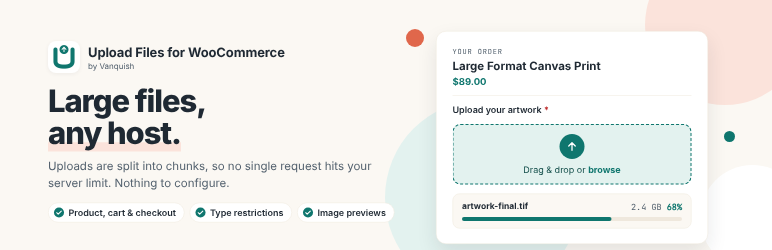
Large files are handled properly. Every upload is split into chunks and reassembled on the server, so a single request never runs into the size limit your host or CDN enforces — the usual cause of an upload that dies at 90% with no explanation.
Why store owners choose it
- Receive uploads bound to each order — no more chasing files over email.
- Show upload fields exactly where they make sense: product, cart, checkout, order pages.
- Make uploads required so customers can’t order without providing their files.
- Restrict by file type, size and image dimensions.
- Get notified by email the moment a customer uploads a file.
- Fully translatable — upload field texts get a box per language, with or without WPML.
- Handle large files on any host — uploads are split into chunks, so no single request runs into your server’s or your CDN’s size limit.
What’s included for free
- Multiple upload fields per product
- Single file per upload field
- Display on product, cart, checkout and order pages (classic and block-based cart & checkout)
- Individual products — add the same product multiple times with distinct uploads
- Require an upload before add-to-cart or checkout
- File type, size and dimension restrictions
- Accept extra file types for uploads – EPS, AI, CDR and other print formats WordPress refuses by default
- Email notifications for the shop, and the uploaded files in the order emails – one row per file, with a thumbnail and a download link
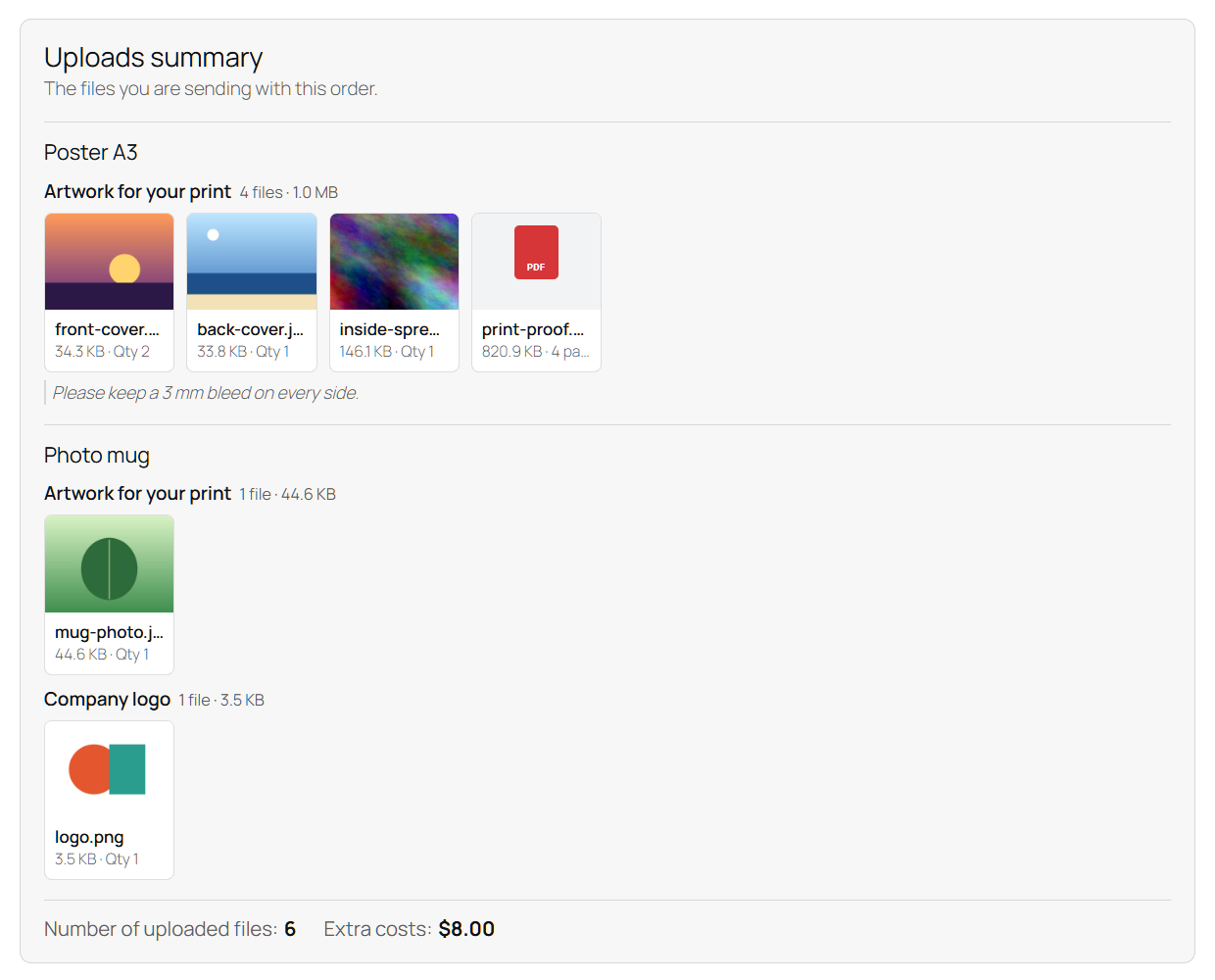
- Upload progress bar, file delete, and a tile for every uploaded file – its preview or a label of its type – in the upload area, under the cart items and in a summary box
- Light or dark colour scheme for the upload boxes, and your own colours for the upload buttons, to match your theme
- Chunked uploads for large files — with automatic retry on a failed chunk
- Translatable button texts, and a box per language for every upload field text
- Send a proof of an uploaded file with Vanquish Attach Me (its Premium): a button on each file of the order, and the state of the proof next to the file, for you and for your customer
Premium features
The Premium version, distributed separately, adds:
- Multiple files per upload field — let customers attach several files to a single field, and download all the files of a field as one zip when they are kept on your server
- Image crop editor with rotation and aspect-ratio control
- Low print resolution warning — tell customers when a photo has too few pixels for the size it will be printed at
- iPhone photos (HEIC) converted to JPEG in the customer’s browser, so they can be previewed, cropped and checked like any photo
- Compress images – store uploaded photos as lighter JPEG files, compressed and resized to a longest side, to save disk space
- Extra costs & discounts per uploaded file — fixed or percentage
- Per-second (audio/video), per-file-size and per-PDF-page surcharges
- Set the product price based on the number of uploaded files
- Cloud storage: Dropbox, Amazon S3 and Google Drive
- File name pattern – rename uploaded files with the order number, SKU, product name and more
- Upload protection – a per-visitor upload limit and a minimum free disk space, so nobody can fill your server through the upload fields
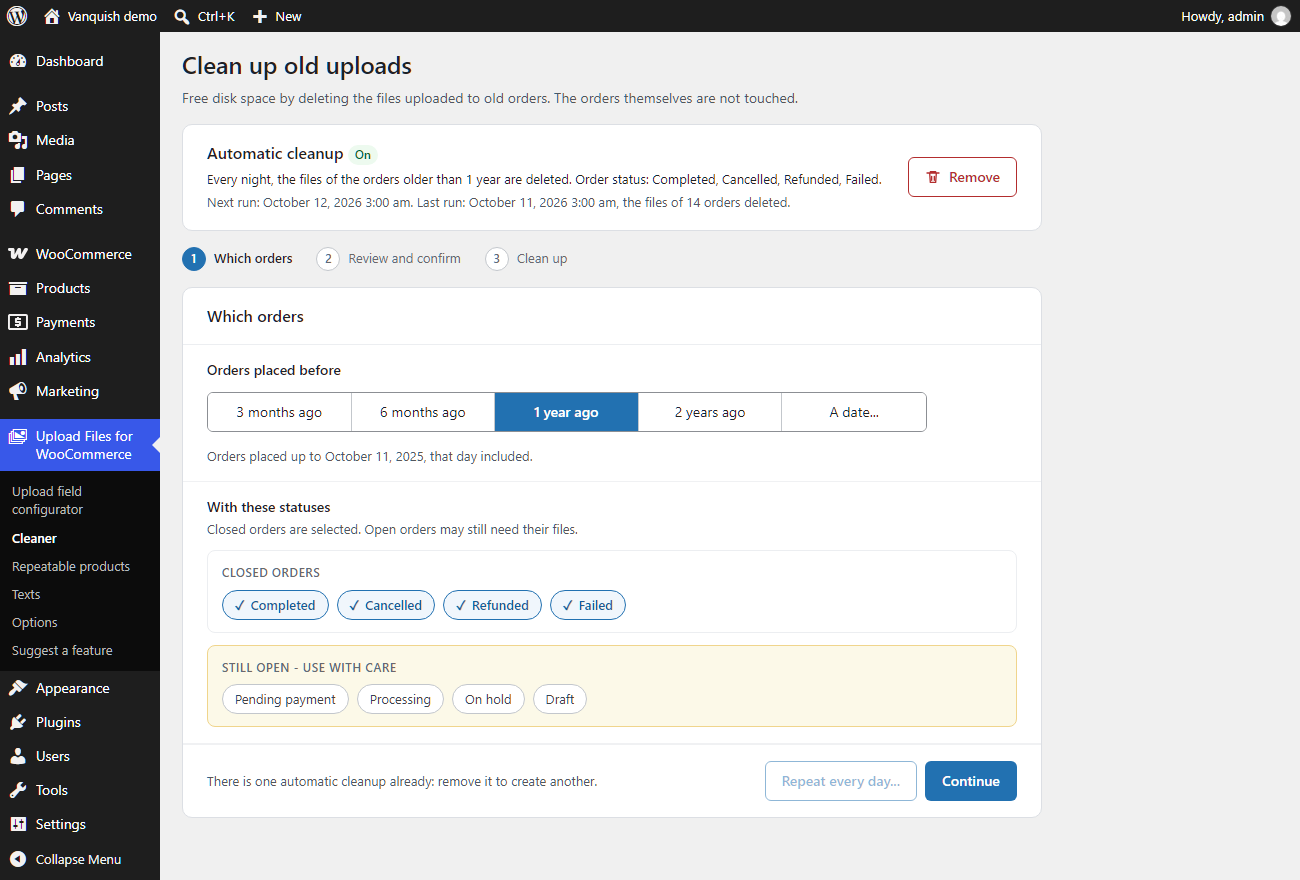
- Clean up old uploads – delete the files of old orders by age and order status, on request or automatically every night
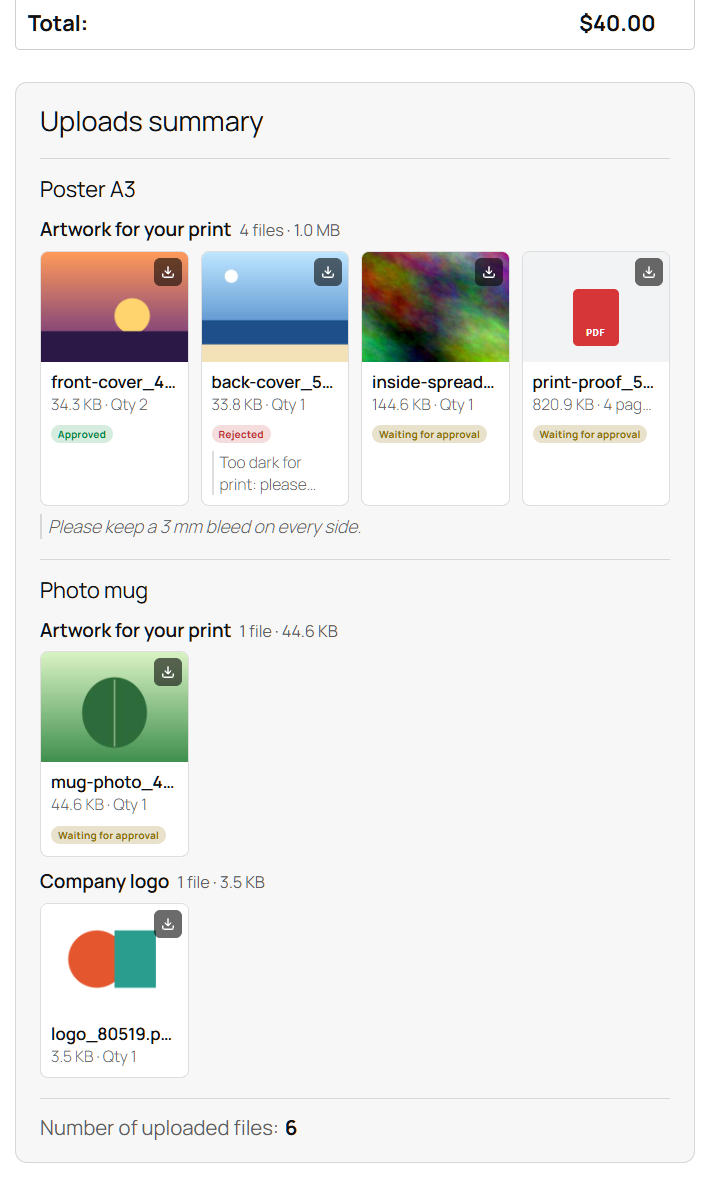
- Approve / reject uploaded files with customer feedback
- Visibility rules by product, category, tag, brand, user role, order status, payment gateway, shipping method and time
- Show the upload fields from the last order on the My Account dashboard
- Advanced shortcodes to place upload forms anywhere
- Priority support and updates
Screenshots, plans and answers on the plugin’s page: vanquishplugins.com/plugins/upload-files.
External services
This plugin connects to the following third-party services.
Freemius — Used to deliver plugin updates, manage the optional Premium license, and (only if you opt in) collect anonymous usage data to help improve the plugin. Your site URL and basic environment information are sent to Freemius when you activate the plugin, check for updates, or activate/deactivate a license. Provided by Freemius, Inc.
Terms of Service: https://freemius.com/terms/
Privacy Policy: https://freemius.com/privacy/
Cloud storage (Premium only) — The free version stores uploaded files on your own server and uses no external storage. If you enable a cloud storage destination in the Premium version, the files your customers upload are sent to the storage account you configure, and only at the moment an order is created (when the customer reaches the order-received/thank-you page, or uploads files on the thank-you or order details page). Files are never sent before an order exists. Available providers and their policies:
- Dropbox — Terms: https://www.dropbox.com/terms — Privacy: https://www.dropbox.com/privacy
- Amazon S3 (AWS) — Service Terms: https://aws.amazon.com/service-terms/ — Privacy: https://aws.amazon.com/privacy/
- Google Drive — Google APIs Terms: https://developers.google.com/terms — Privacy: https://policies.google.com/privacy
More WooCommerce plugins by Vanquish
- Vanquish Shipping Tracking for WooCommerce – tracking numbers on orders and emails, with 1,600+ carriers and their logos, a direct tracking link and a Track button. No account needed.
- Vanquish Multiple Addresses for WooCommerce – give customers an address book: save multiple billing and shipping addresses and pick one at checkout.
- Vanquish Attach Me – Order & Product Attachments for WooCommerce – attach files to orders and products, show them to the customer and send them with the order emails.
- Vanquish Request a Quote for WooCommerce – a quote list, a request form, quotes you price as orders, and online payment once the quote is accepted. With Upload Files Premium, the files customers upload go with their quote.
- Vanquish Order Approval for WooCommerce – review every order before it goes ahead, and let the customer pay before or after you approve it.
Capturas
Instalación
- Upload the plugin files to the
/wp-content/plugins/vanquish-upload-files-for-woocommercedirectory, or install the plugin through the WordPress Plugins screen directly. - Activate the plugin through the ‘Plugins’ screen in WordPress.
- Make sure WooCommerce is installed and active.
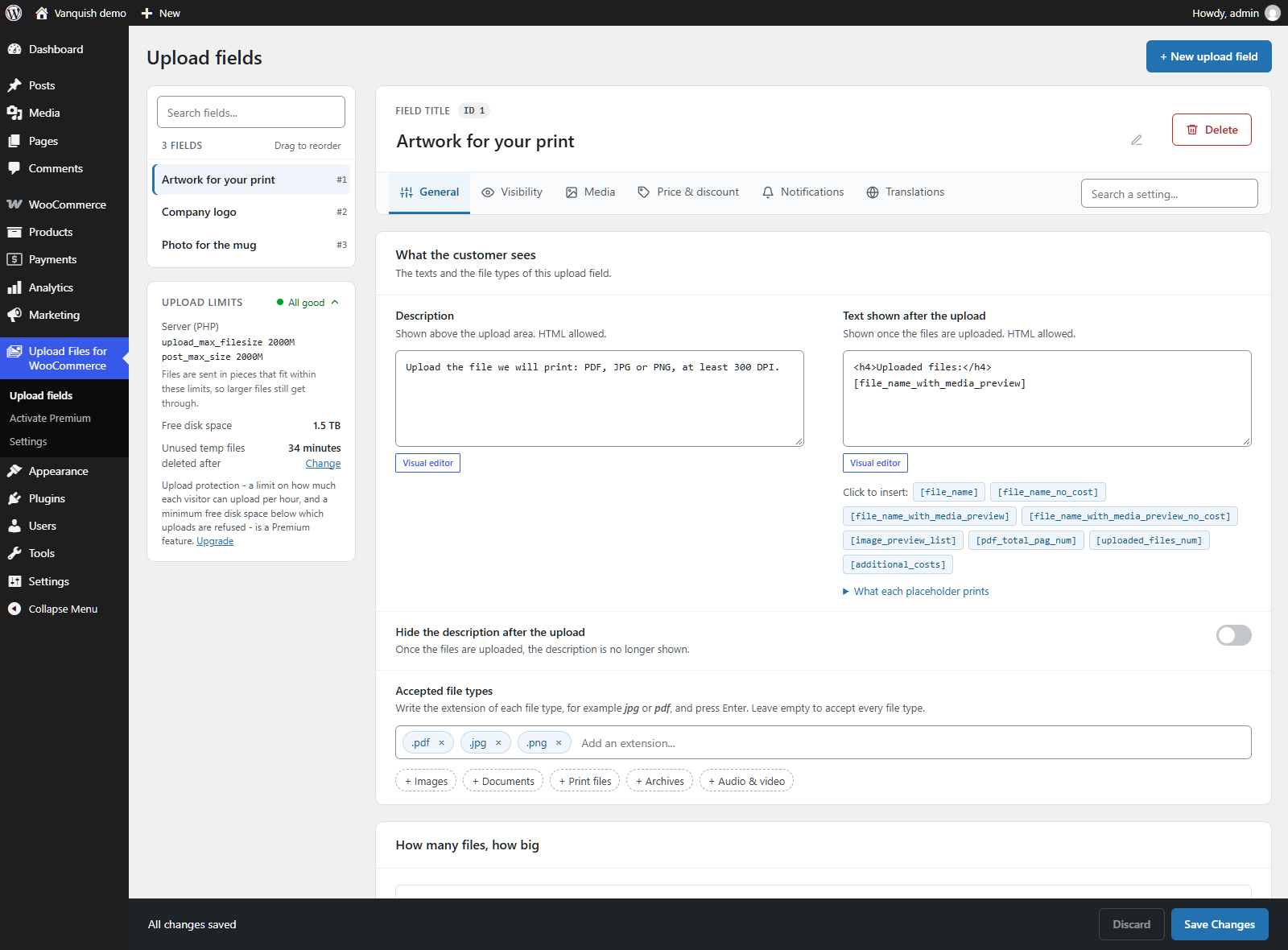
- Go to Upload Files for WooCommerce Upload fields to create your first upload field; the general settings are under Settings.
- Choose on which pages the field appears (product, cart, checkout, order). Fine-grained visibility rules (by product/category, role, gateway, shipping method and time) are available in Premium.
FAQ
-
Does it work without WooCommerce?
-
No. WooCommerce must be installed and active, since uploads are bound to WooCommerce products and orders.
-
Which product types are supported?
-
Native WooCommerce simple and variable products. Custom product types added by third-party plugins are not officially supported.
-
How many files can customers upload in the free version?
-
The free version supports multiple upload fields per product, with one file per field — you configure how many fields to add on the Upload fields page. The separately distributed Premium version adds multiple files per upload field, cloud storage (Dropbox, Amazon S3, Google Drive), the image crop editor and full PDF preview, among other extras.
-
Can customers upload large files?
-
Yes, and there is nothing to configure. Every upload is split into chunks in the browser and reassembled on the server, so the file never travels as a single request – which is what usually produces a 413 error behind Cloudflare, a reverse proxy, or a host with a low
post_max_size.The chunk size is taken from your own server limits – the smaller of
post_max_sizeandupload_max_filesize– and never exceeds 10 MB, however large the file is. If a chunk fails it is retried on its own instead of restarting the whole upload, and the server checks the reassembled file against the size the browser reported before accepting it.This works in the free version too. What still applies is the maximum size you set on the upload field itself, along with your server’s disk space and PHP execution time.
-
Does it support the block-based cart and checkout?
-
Yes. Both the classic (shortcode) and the block-based WooCommerce cart and checkout are supported. On the block cart/checkout the upload fields appear in the order-summary area.
-
Yes. With Vanquish Request a Quote for WooCommerce 1.0.3 or newer, the files a customer uploads on the product page go with the product when it is added to the quote list, and reach the quote when the request is sent. Required upload fields are required for a quote too: the request is not sent until their files are there. The quote list shows the files under each product (Request a Quote 1.0.4 or newer), the customer sees them on the quote’s page, and you see them on the quote’s page in the admin, as for an order.
-
Can I send the customer a proof of their file to approve?
-
Yes, with Vanquish Attach Me for WooCommerce Premium, 1.6.3 or newer. On the admin order page every uploaded file has a «Send a proof» button: it opens Attach Me’s proof form with a title and a message already written, and you choose the proof and save it. The state of the proof – to approve, approved, changes requested – appears next to the file, on the order page in the admin and on the customer’s order page, where the customer approves it or asks for changes. This works with the free version of Upload Files too.
-
Is it translatable?
-
Yes, and it does not depend on any one translation plugin. Button texts are translatable, and every text of an upload field — title, description, disclaimer and the rest — has a box per language in the Translations tab of the field itself. That works with WPML, with Polylang, or with nothing more than the languages installed in WordPress.
If you have been translating those texts in WPML String Translation, they are moved over automatically the first time you open the admin after updating, and nothing is deleted from WPML.
-
Customers upload files, but the order shows none. What should I check?
-
The uploads stay in a visitor session until the order is created, and the session is identified by a cookie named
vanupfi_uid. If that cookie does not survive from the upload to the checkout, the order is created with nothing attached.Turn on Settings General Debug log and place a test order. The plugin records when each file was saved, which order events WooCommerce fired, whether the uploads were still reachable at each one, and whether they were attached to the order. Read it under WooCommerce Status Logs, source
vanquish-upload-files. If nothing appears there, check that logging is enabled in that screen’s settings. Then check, in this order:- Is the
vanupfi_uidcookie present in the browser while on the checkout page? The most common cause of a missing one is a cookie consent banner, which blocks cookies it does not recognise until consent is given. A full-page cache or a CDN dropping theSet-Cookieheader does the same. - How long passes between the upload and the completed order, compared with Settings General Keep files of visitors who have not ordered (minutes)? When that time elapses the session is deleted, and the temporary files go with it.
- If both look right, deactivate your other plugins, confirm that a test order keeps its files, then re-enable them one at a time.
Temporary uploads live in
wp-content/uploads/wcuf/tmp/; files attached to an order live inwp-content/uploads/wcuf/, in a subfolder per order. - Is the
-
Where are uploaded files stored?
-
By default on your own server. Premium adds Dropbox, Amazon S3 and Google Drive as storage destinations.
-
Yes. The Premium version provides shortcodes to render the upload form on any page:
[vanupfi_upload_form]– a generic upload form.[vanupfi_product_page_upload_form]– the product-page upload form.[vanupfi_cart_page_upload_form]– the cart upload form.[vanupfi_checkout_page_upload_form]– the checkout upload form.[vanupfi_upload_form_last_order]– the upload form for the customer’s last order.
Important: when you place one of these forms on the product, cart or checkout page, tick that page in Settings General Your own layout Place the upload area with a shortcode, so the plugin stops drawing its own upload area there and the fields are not shown twice. For example, if you use the product-page form shortcode, tick Product page. Two things to know: required upload fields stay required, so a ticked page without its shortcode leaves the customer unable to complete the order; and the option is for the classic cart and checkout only – on the block cart and checkout, add the Upload fields block instead.
Migrating from the CodeCanyon version? The old
[wcuf_...]shortcodes keep working as aliases of the new[vanupfi_...]ones, so you do not need to edit your product content. -
The shortcode prefix changed from
wcuf_tovanupfi_. Since version 1.0.11 the old tags keep working as aliases, so simply updating the plugin is enough. If you prefer to update your content, the mapping is 1:1:[wcuf_upload_form]->[vanupfi_upload_form][wcuf_product_page_upload_form]->[vanupfi_product_page_upload_form][wcuf_cart_page_upload_form]->[vanupfi_cart_page_upload_form][wcuf_checkout_page_upload_form]->[vanupfi_checkout_page_upload_form][wcuf_upload_form_last_order]->[vanupfi_upload_form_last_order]
-
Will my translations of the old plugin carry over?
-
Partly, and on their own. The CodeCanyon version (WooCommerce Upload Files) was translated under another text domain,
woocommerce-files-upload. The languages it came with – German, Spanish, French, Italian, Polish and Portuguese (Brazil) – are in this plugin too. If you made your own translation of the old plugin, with Loco Translate or into another language, since version 2.7.2 the plugin reads it for the texts that did not change – about one in seven, among them the upload buttons and messages your customers see – whenever it has no translation of its own for them. Your old files are only read, never changed, and the old plugin does not need to stay installed. The other texts are new: translate them with Loco Translate under the new text domain,vanquish-upload-files-for-woocommerce, or on translate.wordpress.org. -
Can I customize the templates?
-
Yes. Copy the template you want to change from the plugin’s
templatesfolder into avanquish-upload-filesfolder of your theme (a child theme is best), keeping its sub-folder:templates/order/upload-form.php, for example, becomesyour-theme/vanquish-upload-files/order/upload-form.php. The plugin then uses your copy instead of its own. Copies made for versions before 1.10.0, in the theme’swcuffolder under the old file names, keep working. When the plugin changes a template you have copied, its admin pages tell you, so you can bring your copy up to date. -
You can see all Premium plans and prices on the pricing page: https://vanquishplugins.com/migration/pricing/ – single site or 3, 5 and 10 sites, billed monthly, yearly, or once (lifetime). The same plans are also shown inside the plugin, under the «Upgrade» menu.
-
Yes, and it is strongly recommended. The free version on WordPress.org is the same plugin with fewer features: install it on your own site, with your own theme, and check that the upload fields fit your product, cart and checkout pages before upgrading. Premium adds features on top of it, on the same foundations.
-
The CodeCanyon item (WooCommerce Upload Files) has been retired and continues here as the free Vanquish Upload Files for WooCommerce. Existing CodeCanyon customers can convert their purchase into a Premium license – including 1 year of updates and support at no extra cost – on the migration page: https://vanquishplugins.com/migration/
Reseñas


Colaboradores y desarrolladores
«Vanquish Upload Files for WooCommerce» es un software de código abierto. Las siguientes personas han colaborado con este plugin.
Colaboradores

Traduce «Vanquish Upload Files for WooCommerce» a tu idioma.
¿Interesado en el desarrollo?
Revisa el código , echa un vistazo al repositorio SVN o suscríbete al registro de desarrollo por RSS.
Registro de cambios
2.7.3
- Fix: with another plugin that reads the scheduled tasks early (Really Simple Security, among others), version 2.7.2 stopped the whole site with a fatal error.
- Security: on the order details and Thank you pages, files can be added to a guest’s order only from that order’s page.
- Fix: when «Replace» was refused (the order changed status, or the file was approved meanwhile), the new file was added next to the old one in a field of one file.
- Fix (Premium): with WooCommerce Table Rate Shipping 3.x calculating per order, an upload field limited to its shipping method never showed in the cart and checkout. The field editor offers its rates one by one again; a rule saved with the whole method keeps all its rates ticked.
- Fix: a «translation loaded too early» notice when another plugin read the scheduled tasks before WordPress was ready.
2.7.2
- Fix: after uploading the file of a required upload field of one file, the Add to cart button stayed disabled; the «Place order» button of the classic checkout and the warning when leaving the page could still ask for the file. A regression of 2.7.1.
- New: moving from the CodeCanyon version, your own translation of the old plugin (Loco Translate, or a language it did not come with) is used for the texts that did not change, while this plugin has no translation of its own for them. Nothing is copied or changed, and the old plugin does not need to stay installed. See the FAQ «Will my translations of the old plugin carry over?».
2.7.1
- New: a «Replace» button on an upload field of one file, next to Delete: the customer chooses a new file and it takes the place of the old one, which is removed only once the new one has arrived. On the product, cart and checkout pages always; on the order details and Thank you pages with the rules of Delete («The customer can delete the files» and the order statuses ticked; with file approval, only a rejected file), and the new file waits for approval again.
- Fix (Premium): in the «Shipping method» visibility rule, the rates of Table Rate Shipping by Bolder Elements and of WooCommerce Table Rate Shipping were never matched on the order details and Thank you pages, and those of WooCommerce Table Rate Shipping calculated per item, line or class not even in the cart and checkout: the upload field stayed hidden.
- Fix: a PHP 8.1+ deprecation notice («Implicit conversion from float … to int loses precision») wherever a length of audio or video was shown.
- Translations: the customer texts of the emails and the states of the proofs in German, Spanish, French, Italian, Polish and Portuguese (Brazil).
- Tweak: in the field editor, the section titles stand out from the options. In the General tab, «Rules» is now «Rules and permissions», with the switches to let the customer delete and download the files (they were in «Extras», now «More options»).
- Templates changed: upload-form/field.php, order/field.php.
2.7.0
- New: a new look for the uploaded files in the emails. In WooCommerce’s order emails (under each product), in the files block of the shop’s «New order» email, in the «new files» notice and in the approval email, every file is a row: its thumbnail or the label of its type, its name (the download link, when the reader may download it), type, pages or length, size and quantity, its approval status and the shop’s note. Past 8 files per field, a link to the order. Thumbnails for files kept on your server, on Dropbox and on Google Drive.
- New: the «new files» notice says whether the files came with the order, from the order page or with a quote request, and has the customer’s details and a button to the order.
- New: the approval email lists only the files whose status changed, with the shop’s note, and links to the order.
- New: plain-text emails get a list of the files, one per line, instead of raw HTML.
- New (with Vanquish Attach Me Premium): the state of each file’s proof in the emails.
- Fix: the approval email was not sent at all when one of the fields changed in the same save had its notification turned off.
- Fix: the approval email could show the statuses from before the save.
- Fix: with several recipients of the «new files» notice, the second one got the first one’s attachments.
- Fix: on stores that renumber their orders, the order link in the «new files» notice and the order number in the approval email’s subject used the order’s internal id.
- Tweak: in the field editor, the «Files in the «New order» email» section is now «New order email».
- Templates changed: emails/order-item-uploads.php, emails/admin-new-order-files.php.
2.6.1
- Fix: the title stored with an upload listed every value of every attribute of the product (for a variation, of its variable product): «Upload your file (PD-6 Material: …, Color: Black, Graphite, Light grey, …)». It now names the product, with the attributes only for a simple product when «Display the simple product name with attributes» is on.
- Fix: the uploads summary, the files under the cart items, the admin order page and the quote list show the upload field’s title, also for uploads made before this version.
- Templates changed: upload-form/upload-form.php, order/upload-form.php.
2.6.0
- New: «Send a proof» with Vanquish Attach Me (its Premium, version 1.6.3 or later): a button on each uploaded file on the admin order page opens Attach Me’s proof form already filled in, and the state of the proof (to approve, approved, changes requested) is shown next to the file, for the shop and for the customer.
- New: when Attach Me Premium is not installed, one line in the order’s «Uploaded files» box presents it; it can be closed for good.
- Fix: the costs of the uploaded files are shown with the shop’s decimals and separators («$1.50», not «$1.5»).
2.5.0
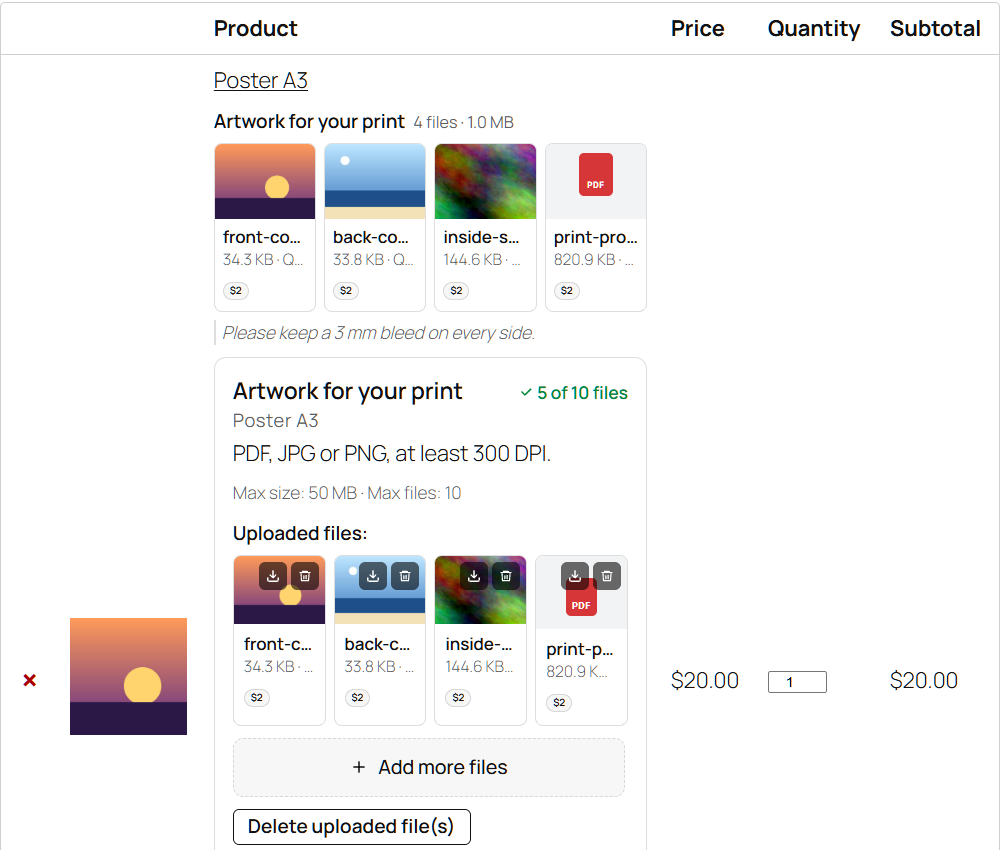
- New: a new look for the uploaded files in the shop. Under each product of the classic cart and checkout, and in the Request a Quote list (Premium), every file is a tile of the same size – an image with its preview, a PDF or any other file with a label of its type – with its size, quantity and cost; past 7 files the others fold into a «+N» tile. Click an image to see it full size in a lightbox.
- New: the summary box (Settings > Appearance) shows the files product by product, then field by field, as tiles. It now comes after the products: after the products table of the classic cart, above the payment of the classic checkout, after the whole block cart and checkout (full width, or under the Upload files block when you placed it in the checkout), and after the order table of the Thank you and order details pages, where each file shows its approval status, the shop’s note and a download button. It used to show the files of only one of two products whose upload fields had the same title.
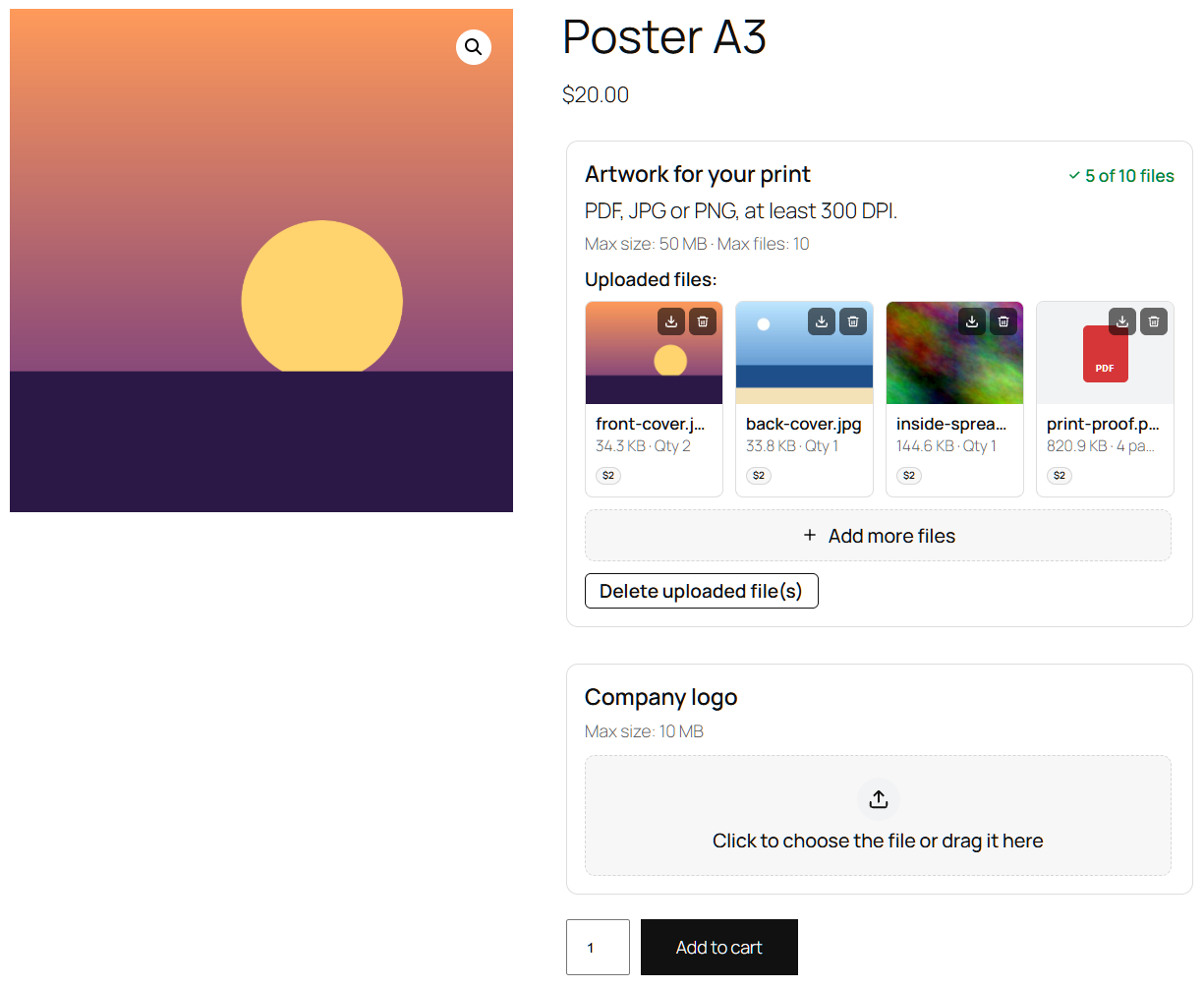
- New: a new look for the upload area. One box per field, with what it accepts on one line; a drop zone that becomes «Add more files» after an upload; the chosen files with a – / + quantity (Premium); one progress bar for the whole field, with the amount sent; the uploaded files as tiles, with delete and download. «Delete uploaded file(s)» is now readable on the block cart and checkout, where it was light text on light grey.
- New (Premium): on the quote’s page of Request a Quote, the files are shown as on the order pages.
- Improvement: on the product, cart and checkout pages, deleting a file asks for a confirmation first, as on the order pages.
- Fix: after deleting the last file of an upload field and uploading another, the new file could take the page count of the deleted one (PDF page costs).
- Fix: on the block cart, removing a product left its upload fields on screen until the page was reloaded.
- Tweak: the settings «Thumbnails of the chosen files: size» and «fit» are gone: each chosen file now has a thumbnail of fixed size.
- Templates changed: upload-form/upload-form.php, upload-form/field.php, order/upload-form.php, order/field.php. If your theme has a copy of them, compare it with the new ones (an old copy of upload-form.php still prints the old summary box as well).
2.4.0
- New (Premium): works with Vanquish Request a Quote for WooCommerce (1.0.3 or newer). The files a customer uploads on the product page go with the product into the quote list, are shown under it there (Request a Quote 1.0.4 or newer) and reach the quote when the request is sent, with the same check of required uploads as the checkout. «Add to quote» waits for the required uploads like «Add to cart», a product that can only be quoted gets the upload area next to its quote button, and «Request a quote for this cart» takes the files of the cart. The customer sees the files on the quote’s page, and you on the quote’s page in the admin, as for an order.
- Fix: on the classic cart page the file previews and the extra cost lines sat beside the product name instead of under it.
- Fix: no more «WC_Order_Item_Product::offsetSet is deprecated» notice on order pages and in order emails with upload fields, and no empty upload area container in order emails.
- Fix: Settings > Appearance > Several fields per row – with a page switched off, the next page’s switch no longer moves into its row.
- Tweak: links to the plugin’s page on vanquishplugins.com, and to Request a Quote and Order Approval among the other Vanquish plugins.
2.3.0
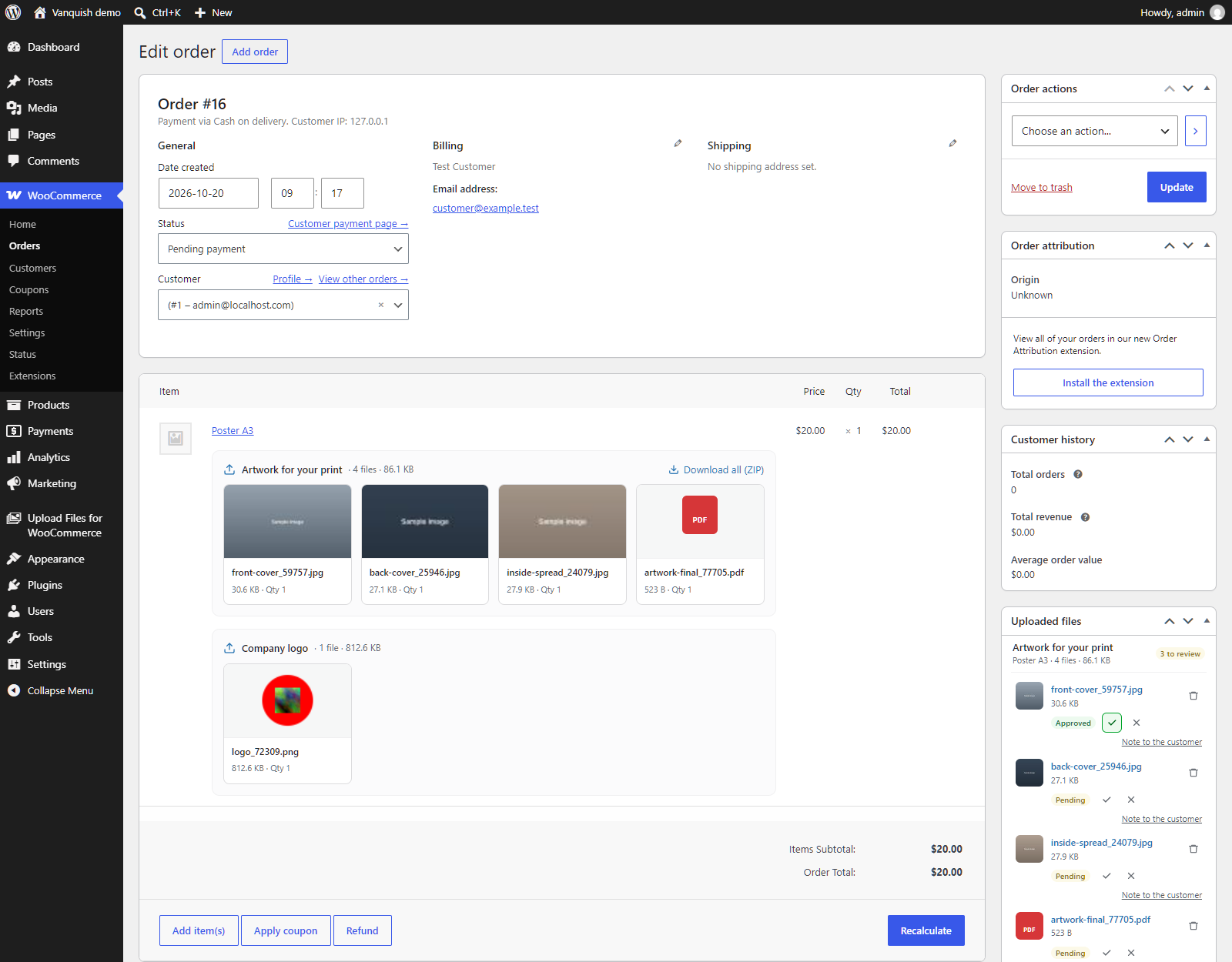
- New: a new look for the uploaded files on the admin order page. Under each order item, every file is a tile of the same size – an image with its preview, a PDF or any other file with a label of its type – with its size and quantity; in the «Uploaded files» box, one compact row per file.
- New: click an image, under an item or in the box, to see it full size in a lightbox, together with the other images of the same upload field (arrow keys, Download). Images stored on Dropbox, Amazon S3 or Google Drive (Premium) open there too.
- Improvement: deleting a file from the «Uploaded files» box no longer reloads the page, so the approvals, notes and other order changes not saved yet are kept. «Delete file(s)» now deletes all the files of an upload field at once, after a confirmation, instead of waiting for the order Update.
- Improvement (Premium): approve or reject a file with one click, change the decision later, undo it before saving, and write the note to the customer right under the file. A yellow line says how many changes are waiting for the order Update button.
- Tweak: the Upload block of the block editor uses the new icon colour.
- Templates changed: admin/order-item-uploads.php. If your theme has a copy of it, compare it with the new one.
2.2.0
- New (Premium): Compress images. In the Media tab of an upload field, uploaded images can be stored as lighter JPEG files: compressed at the quality you choose (85% by default) and, when you set a longest side, reduced to it – never enlarged, and never heavier than the upload. Photos are turned upright and their metadata (camera, date, GPS position) removed; colour profile and DPI are kept. JPEG photos only by default: «Convert other formats to JPG» adds PNG, WebP, BMP and TIFF, with transparent parts filled with white. Off by default, and best left off if you print the files.
- Tweak: a new header for the upload field editor. The ID and the visibility summary sit in one line above the title, the title reads as plain text until you click it, and the tabs, each with an icon, form the bottom edge of the same card.
- Tweak: messages no longer sit between the tabs and the settings of the upload field editor. A note explaining a tab is shown under the tabs, with that tab only; a one-time notice sits at the top of the tab it is about and can be closed for good – the WPML one is now in the Translations tab.
2.1.2
- Fix (Premium): with «Separate cart items», the checkout could refuse the order with «requires a minimum of 1 file(s) and a maximum of N file(s)» although the customer had uploaded the files. It happened when the files were uploaded on the product page before the product became a separate cart item, for example when the setting was turned on while customers were shopping.
- Tweak: when a product in the cart no longer matches the «Separate cart items» settings and is removed, the notice now names the product and asks the customer to add it to the cart again, in place of «Invalid item(s) were removed from your cart.».
2.1.1
- Security (Premium): the Google Drive OAuth file, which holds your Google client secret, no longer stays in the Media Library, where it sat in a public folder. Its content is kept in the plugin settings and the file is deleted: right after you choose it in Settings, or, if you already had it, the first time Google Drive is used. Only shop managers and administrators can upload .json files to the Media Library now.
- Fix: on the product page, the extra costs in the totals counted again the costs of the upload fields shown before.
- Fix (Premium): «Product price × number of files», and an extra cost added to the item price, could be applied twice when another plugin recalculated the cart.
- Tweak: «Place the upload area with a shortcode» now says it applies to the classic cart and checkout only; on the block ones, place the Upload fields block.
2.1.0
- New: a Settings page with four tabs – General, Appearance, Texts, Separate cart items – in place of the Options, Texts and Repeatable products entries. The settings are grouped in sections with clearer names and help texts, written from what each setting really does. Nothing you have set changes. The plugin menu is now Upload fields, Settings and, in Premium, Cleaner.
- Fix: a product could disappear from a customer’s cart, with the notice that its uploaded files had expired, when the files that ANOTHER visitor had uploaded for the same product expired.
- Fix: the first save of the settings could empty the summary box and put the upload fields side by side, on sites that had never saved those settings before.
- Fix: «Show the copies of each file in the cart» (it was «Show the quantity for each upload in the item cart table») had no effect.
- Fix: the files of visitors who had not ordered were deleted after 20 minutes of inactivity, not the 34 the settings showed, until the settings were saved.
- Fix: with «Warn before leaving the page: Only the first time», the OK of any popup of the plugin – a refused file type, for example – turned the warning off.
- Fix: with protected file links on, the file that blocks direct access to an order’s folder grew at every page view. It is now written once, with the rule for Apache 2.4 too.
- Fix: the text before the number of repeated products (Texts tab) is used on the order pages and in the emails too, not only in the cart; the customer’s note is shown in the emails under every file, not only under images.
- Fix: image previews – square photos were stretched when the two preview sizes differed, and a preview size of 0 hid the file icons. With «Keep the small copies» on, GIF and BMP files had no preview, and the copies were not made again after a size change.
- Fix (Premium): the «Quantity box for each file» switch of an upload field changed only the emails; it now hides the quantity box on the pages too.
- Fix (Premium): with «Crop the photo: On the server» and no Imagick on the server, the customer was left waiting with no buttons. The photo is cropped in the browser then, and the settings say so.
- Fix (Premium): on PHP 8, the email telling the shop that a file could not be sent to Amazon S3 or Dropbox failed with an error, so it never arrived.
- Fix: «Your own button colours» did not reach the PDF Preview button, and the DPI limits were shown in «px».
- Tweak: settings that had no effect are gone from the page (crop area width and height, distance between upload buttons). «How image previews are made» and «Keep the small copies» are now in the free version too; the crop editor settings, the PDF preview, the price per number of files and the layout of the upload form shortcode are shown with Premium only, where they work.
- Tweak: «Place the upload area with a shortcode» (it was «Disable standard upload-field management») is Premium, like the shortcodes it needs: without an active licence it is not applied, so the upload fields are shown again.
- Templates changed: upload-form/field.php, order/field.php, emails/order-item-uploads.php. If your theme has copies of them, compare them with the new ones.
2.0.3
- Security: the uploads details sheet of an order can now be opened only by shop managers and administrators. Please update.
- Removed: the «Uploaded files» panel in the vendor dashboards of Dokan and DC Multivendor (WC Marketplace). Neither had been maintained for years: the DC Multivendor one no longer ran with current versions of that plugin (now MultiVendorX), and the Dokan one did not show the files of orders split between several vendors. The uploaded files remain available to the shop on the WooCommerce order page.
- Tweak: unused images, scripts and stylesheets removed from the plugin.
2.0.2
- Fix: on stores using High-Performance Order Storage, a bulk action added to the orders list by another plugin could end on a blank page instead of going back to the list. The plugin’s own «Delete uploads» bulk action dropped the address the list returns to for every action that was not its own. «Delete uploads» itself was not affected.
2.0.1
- Fix: without an active Premium licence – with the free version, or after a licence had expired – an upload field kept obeying the Premium visibility conditions set on it (user role, payment method, shipping method, order status, time), while the section that sets them is no longer in the configurator: a field hidden by one of those conditions stayed hidden, with no way to show it again. The conditions now apply only with an active licence. They are not deleted: they apply again as soon as Premium is active.
- Fix (Premium): the «Time» visibility condition now works on the order details and Thank you pages. «Hide some time after the order» did the opposite of what it says: the upload field was hidden on the product, cart and checkout pages, before any order existed, and was never hidden afterwards. It is now shown until the order is placed, and hidden once that time has passed since the order. «Hide after a date» hid the field on the product, cart and checkout pages only: it now hides it on the order pages too.
- New (Premium): «Hide after a date», in the Time visibility condition, can have a year. With a year the upload field stays hidden after that date; with «every year», as before, it is hidden from that date until the end of the year and comes back on 1 January.
2.0.0
- New: the upload field configurator has a new interface. Your upload fields are listed on the left – search them, drag them to change their order – and the one you pick opens on the right, with its settings in tabs: General, Visibility, Media, Price & discount, Notifications and, on a site with more than one language, Translations. Each setting has a plain name and a line that says what it does, and a «Search a setting» box finds a setting whichever tab it is in. No setting has been removed: the upload fields you have configured are read and saved as they were.
- New: the configurator says at the top what needs your attention – an upload field that accepts a file type WordPress refuses or a file size above your upload limit, disk space running low – with a link to the field or to the option to change.
- Improvement: the «Change» links of the Upload limits panel open the Options page at the option they are about, and highlight it.
- New (Premium): automatic cleanup. In the Cleaner, «Repeat every day» turns the cleanup you have set up – the files of the orders older than 3 months, 6 months, 1 year or 2 years, with the order statuses you choose – into a rule that runs by itself every night. A box at the top of the page says what the rule does, when it runs next and what the last run deleted, and removes it. The first run is the night after the rule is created.
- Improvement (Premium): the Cleaner works in three steps. It says how many orders match and asks you to confirm before it deletes anything, shows how far it has got, and when the server stops answering it says where it stopped and goes on from there. When the page opens only the closed order statuses – completed, cancelled, refunded, failed – are ticked: they used to be all ticked, orders in progress included.
- Fix (Premium): «Show the price per MB or KB in the cart», in the extra cost per file size, could not be switched off: it came back on at every save.
- Fix: on a site with more than one language, saving the translations of an upload field stored the texts of the main language as the translation of the fields that had none yet, so those fields no longer followed a later change to the main text.
- Fix (Premium): the «Time» visibility rule could not be set to the 31st of a month.
- Fix (Premium): in the «Shipping method» visibility rule, the methods of Table Rate Shipping by Bolder Elements did not stay ticked: they were shown unticked when the configurator was opened again, and lost at the next save.
- Improvement: two bundled libraries the plugin no longer needs – a date picker and a lightbox – have been removed.
Older versions: see the full changelog at https://plugins.svn.wordpress.org/vanquish-upload-files-for-woocommerce/trunk/changelog.txt